Applications
An application is the complete journey of an end user through a workflow supported by HyperVerge.
It is automatically created by HyperVerge everytime a user starts onboarding either on your app(through the SDK integration) or through an onboard link.
You can view & manage your applications in the applications tab of the dashboard
Application Lifecycle
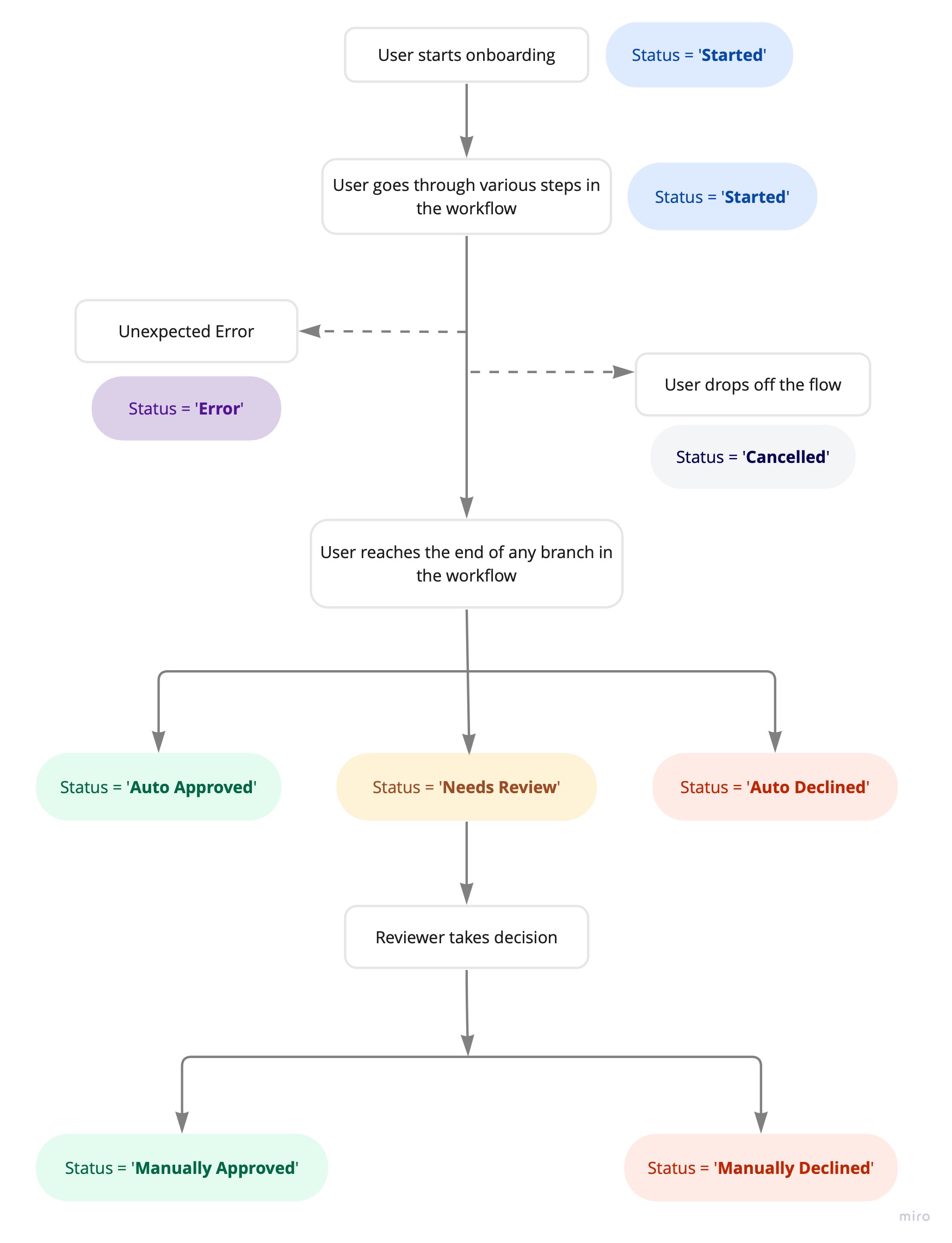
Understanding Application Statuses
An application can have one of the following 'statuses':
Started
- The user has started with the application and is going through various steps of the workflow
Auto Approved
- User's application has reached 'auto approved' state in the workflow
- This ideally means, everything is fine with the application
- Findout the when an application can reach this state by going through your workflow on the dashboard
Auto Declined
- User's application has reached 'auto declined' state in the workflow
- This ideally means, some flags were found while processing the application, due to which this user had to be declined
- Findout the when an application can reach this state by going through your workflow on the dashboard
Needs Review
- User's application has reached 'needs review' state in the workflow
- This ideally means, the application requires manual intervention to decide whether it should be approved or declined
- Findout the when an application can reach this state by going through your workflow on the dashboard
Manually Approved
- When a review agent(from your organisation) manually approves the application
- This is done by clicking on the 'approve' button corresponding to the application, on HyperVerge's dashboard
Manually Declined
- When a review agent(from your organisation) manually declines the application
- This is done by clicking on the 'decline' button corresponding to the applicaion, on HyperVerge's dashboard
User Cancelled
- When a user drops off the flow by clicking on the 'X' icon in any of the SDK pages
- Please note that if the user drops off by any other means (Eg: killing your app, deleting the app etc), the status would remain as 'started'
Error
- When an unexpected error happens during the user journey
- Please refer to the Error Response Details in the Android SDK, iOS SDK, React Native SDK, Flutter SDK, or Web SDK integration guides to learn more about the SDK Errors.
The Transaction ID
- Every application is uniquely identified by an ID called 'Transaction ID'
- This transaction ID is provided by you at the time of SDK initialisation or while creating an onboard link
- A customer's application can be found on HyperVerge's dashboard or retrieved from HyperVerge's backend(via Results API) by using the Transaction ID
- It is recommended that, the transaction ID sent to HyperVerge is same as the customer's identifier(eg: userID, customer ID) that's stored in your system. This makes fetching of applications from HyperVerge easier
Common Questions
How to know when an application status has changed?
- The Results Webhook is triggered everytime an application's status is changed - either on SDK/Onboard Links or through a review action on the dashboard