Web SDK - Integration Guide
This guide provides step-by-step instructions for integrating the HyperKYC Web SDK into your project.
- Complete Sample Project: A ready to use example project with all the code you need to get started with the Web SDK quickly.
Prerequisites
Before starting the integration, please ensure you meet all the requirements listed in the Prerequisites for Web SDK Integration section.
Integration Steps
The following steps will guide you through implementing the HyperVerge WebSDK in your application:
Step 1: Add the SDK Script to Your Project
Add the following script to your HTML page :
<script src="https://hv-web-sdk-cdn.hyperverge.co/hyperverge-web-sdk@<actual_SDK_VERSION>/src/sdk.min.js"></script>
@<actual_sdk_version> with the specific version number for production use. Please check out the changelog for the current recommended version.Step 2: Launch the SDK
You have two options to initialise and launch the HyperKYC SDK:
Option 1: Pass the WorkflowID and transactionID directly
Create a HyperKycConfig instance and launch the workflow:
const hyperKycConfig = new HyperKycConfig(
  "<jwtToken>",        // JWT token generated from your backend
  "<workflowID>",      // Workflow identifier
  "<transactionID>",   // Unique transaction identifier
  true                  // Optional: true to show landing page, default is false
);

await HyperKYCModule.launch(hyperKycConfig, callback); // see handler function in the error handling section for callback function
Option 2: Pass only the authToken containing the WorkflowID and transactionID
1. Generate the auth token from your backend.
2. Initialise the SDK using the generated token:
const hyperKycConfig = new HyperKycConfig(
  "<jwtToken>", // JWT token with WorkflowID and transactionID in payload
  true           // Optional: true to show landing page, default is false
);

await HyperKYCModule.launch(hyperKycConfig, callback); // see handler function in the error handling section for callback function
Parameter Descriptions
The following table provides the details of the parameters required for the Launch SDK step:
| Parameter Name | Description |
|---|---|
| jwtToken |
|
| workflowID | Name/ID of the workflow you're launching |
| transactionID | A unique ID for tracking individual transactions |
| Landing Page Flag | If set to true, a landing page is displayed before the configured journey begins, informing users about what to expect during the journey 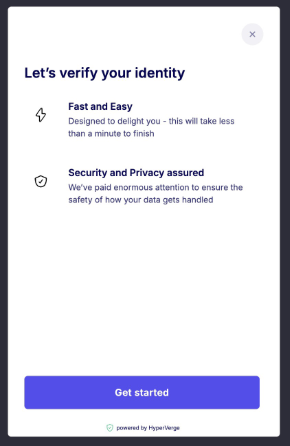 |
| Callback | A function to handle the SDK response after workflow completion |
Step 3 (Optional): Prefetch Resources and Configs
To improve performance, prefetch resources and configs before launch.
Call prefetch() well before launch(), not right before it. Calling it immediately before launch() can leave the workflow stuck in a loading state. Prefetch duration depends on network bandwidth; allow enough time for it to complete before the user starts the workflow.
HyperKYCModule.prefetch(appId, workflowId);
appId: Your assigned App IDworkflowId: Name/ID of the workflow configured in the HyperVerge dashboard
Step 4: Optional Configurations
Customise your HyperKYC Web SDK setup with configurations based on your specific needs.
HyperKycConfig instance but before calling the launch() method.setInputs
Use this function to pass additional input parameters to the SDK. Only apply this configuration when your workflow explicitly requires external input data beyond the standard flow.
hyperKycConfig.setInputs({
  "input_key": "input_value"
});
supportDarkMode
Use this function to enable automatic system theme detection for the SDK interface**.** When set to true, the SDK will launch in dark mode if the system is in dark mode, or light mode if the system is in light mode. By default (when not set or set to false), the SDK always launches in light mode regardless of system settings.
hyperKycConfig.supportDarkMode(true);
setCustomFontStylesheet
Use this function to specify a custom font stylesheet URL for your workflow UI. This is required if you're using an SDK version older than 8.11.5 and need custom fonts. For SDK version 8.11.5 and newer, this function is optional since font URLs can be included directly in the workflow's UI configuration instead.
hyperKycConfig.setCustomFontStylesheet('https://fonts.googleapis.com/css2?family=Roboto');
setDefaultLangCode
Use this function when multiple languages are configured in your workflow's text configuration. This allows the SDK to identify which language to use by default when fetching the text configuration. If you don't specify a language, the SDK will default to the first language listed in the workflow config.
hyperKycConfig.setDefaultLangCode('en');
setInitialLoaderColor
Use this function to set the loader color displayed immediately when the SDK is launched. Initially, the SDK loads, during which it briefly displays a default purple loader. If you'd like to customize this initial loader color to avoid the default color, apply this setter function.
hyperKycConfig.setInitialLoaderColor('#ff5733');
- For example, if you set
setInitialLoaderColorto#ff5733, a red loader will be displayed from the beginning.

setUseLocation
Use this setter function to enable the SDK to request user consent for accessing their location before proceeding with workflow execution. If the user denies location access, they will be prevented from continuing with the workflow.
hyperKycConfig.setUseLocation(true); // default is false
setUniqueId (Deprecated )
Use this function specifically for workflows with cross-platform resume enabled. By providing a unique ID, users can resume the workflow seamlessly across different platforms and devices, maintaining their progress throughout the process.
hyperKycConfig.setUniqueId('<unique_id>');
Example Usage
The following example demonstrates how to combine creating the HyperKYC config and customizing the configuration steps into a complete implementation:
const hyperKycConfig = new HyperKycConfig(
    "<JWT_TOKEN>",        // JWT token generated from your backend
    "<WORKFLOW_ID>",      // Workflow identifier
    "<TRANSACTION_ID>"    // Unique transaction identifier
);

hyperKycConfig.setInputs({ name: "sample name" });
hyperKycConfig.setUseLocation(true);
hyperKycConfig.setDefaultLangCode("en");
hyperKycConfig.setUniqueId("12345-abc");
SDK Responses
For detailed information about Web SDK responses, see the SDK Response Documentation.
Error Handling
The following codeblock provides an example of how to handle the status values in the HyperKycResult object:
const handler = (HyperKycResult) => {
      switch (HyperKycResult.status) {
        case "user_cancelled":
          console.log("User cancelled the workflow");
          break;
        case "error":
          alert("Error");
          console.log(HyperKycResult);
          break;
        case "auto_approved":
          alert("User approved");
          console.log()
          break;
        case "auto_declined":
          console.log("Workflow auto-declined");
          break;
        case "needs_review":
          console.log("Workflow needs manual review");
          break;
        default:
          console.warn("Unknown status:", HyperKycResult.status);
          break;
      }
    };
Important: Always handle all possible status values to prevent technical errors and workflow interruptions.
Error Response Details
The HyperKYC Web SDK returns the following standardized error codes that categorize different failure types during workflow execution:
| Error code | Error message | Description | Summary |
|---|---|---|---|
| 101 | Unable to Fetch workFlow with WorkflowID: <workflow_id> |
| SDK Config Error |
| 101 | Unable to Fetch Text Config | If the workflow has a custom text config source configured and the SDK cannot locate the text config file, please verify that the file exists and is correctly placed under the appropriate app ID. | SDK Config Error |
| 101 | accessToken cannot be empty | The access token was not provided during SDK initialization and launch. | SDK Config Error |
| 101 | WorkflowID cannot be empty | The workflow id was not provided during SDK initialization and launch. | SDK Config Error |
| 101 | transactionID cannot be empty | The transactionID was not provided during SDK initialization and launch. | SDK Config Error |
| 101 | Invalid Request Headers / Request Body |
| SDK Config Error |
| 101 | uniqueId invalid | Unique is not passed in the correct format. It should be standard UUID format | SDK Config Error |
| 101 | Local data not supported by cross platform resume |
| SDK Config Error |
| 102 | <input> is not found in inputs |
| Workflow Input Error |
| 102 | value <value_passed> for key <key_name> is not of the expected type |
| Workflow Input Error |
| 102 | Unexpected param <key_name> passed as input | This error is thrown when the SDK receives an input that is not defined in the inputsRequired object of the workflow. | Workflow Input Error |
| 103 | Workflow cancelled by user | User cancelled the journey by clicking on the close button in the screen. | User Cancelled Error |
| 103 | Internet is down | Workflow ended because of no internet | User Cancelled Error |
| 103 | Domain is not CORS whitelisted | Workflow ended because of CORS | User Cancelled Error |
| 103 | Network error occurred | Workflow ended because of network issues | User Cancelled Error |
| 104 | Invalid previous step | This error is thrown if a module has a previous step configured, but that step was not executed by the SDK | Workflow Error |
| 104 | Could not start recording | Issue in starting video recording in the specified device or browser | Workflow Error |
| 106 | Following Permissions not granted by user: Camera | User denied camera permission | Camera Permissions Denied |
| 107 | Camera could not be initialised properly. Please try again. | An issue occurred while initializing or accessing the camera on the device or browser | Hardware Error |
| 107 | Media recorder not present | Issue in initializing or accessing the Media Recoder API on the device or browser | Hardware Error |
| 107 | Error generating recording | Issue in saving the recording generated using Media Recoder API | Hardware Error |
| 111 or 4xx-5xx | <error message depending on the scenario> | Error thrown by an API | Network error |
| 112 | Unauthorised Request | This error occurs due to a request/response signature validation failure, which may indicate a potential man-in-the-middle (MITM) attack. Please consult the Hyperverge team before proceeding with any decision related to the affected transaction. | Signature Failed Error |
| 126 | User Denied Privacy Consent | The user denied consent for BIPA compliance to capture their face.This consent screen is shown only for clients with a user base in the USA | Privacy Consent Denied Error |
| 151 | Session Validation Failed or <error message depending on the scenario> | Indicates a validation issue while checking for a parallel ongoing session with the same transaction ID. This feature is supported only when the Cross-Platform Resume feature is enabled. | SESSION CONFLICT |