IP Whitelisting
The following guide explains how to configure and manage IP whitelisting in the HVOne Dashboard to secure access to sensitive APIs.
Overview
IP whitelisting restricts API access to specific IP addresses or IP ranges, ensuring that only trusted networks can interact with your APIs. The HVOne Dashboard provides admin-managed IP whitelisting, allowing authorized administrators to configure and maintain whitelists.
You can configure IP whitelisting for the following APIs:
Each API maintains a separate whitelist, enabling you to apply different access controls based on your security requirements.
- The system provides self-service IP whitelisting management through the dashboard
- The system supports single IP addresses and CIDR ranges
- The system maintains separate configuration for different APIs
- The system provides production Business Unit (BU) based access control
- The system performs real-time validation of IP addresses
Prerequisites
Before configuring IP whitelisting, ensure you meet the following requirements:
- You have admin access to the HVOne Dashboard
- You are assigned to at least one production Business Unit (BU)
- You have permissions to manage API access for your Business Units
IP whitelisting is only available for production Business Units. Staging environments do not require IP whitelisting, as there are no IP-based access restrictions for staging.
Procedure
To access the IP whitelisting configuration interface, follow these steps:
-
Open your web browser, navigate to the HVOne Dashboard login page, enter your credentials, and click Log in.
-
From the main dashboard navigation menu, locate and click DevHub.

-
In the DevHub interface, click Configurations, then click IP Whitelisting. The IP Whitelisting interface displays.

-
Select the API you want to configure:
- Output/logs API: Select this option to configure IP whitelisting for output API
- Authentication API: Select this option to configure IP whitelisting for authentication API

Each API maintains a separate list of whitelisted IP addresses. You must configure IP whitelisting separately for each API.
Adding IP Addresses to the Whitelist
Only users with admin access can perform IP whitelisting operations. Due to security restrictions, only adding new IP addresses is supported—editing or deleting existing entries is not allowed.
After selecting your API, you can add IP addresses or CIDR ranges to the whitelist. Follow these steps:
-
Click the Add IP Address button.
A modal dialog opens for entering IP details.

-
Enter the IP address or CIDR block in the provided field:
For example:
-
Single IP address:
203.0.113.42 -
CIDR range:
203.0.113.0/24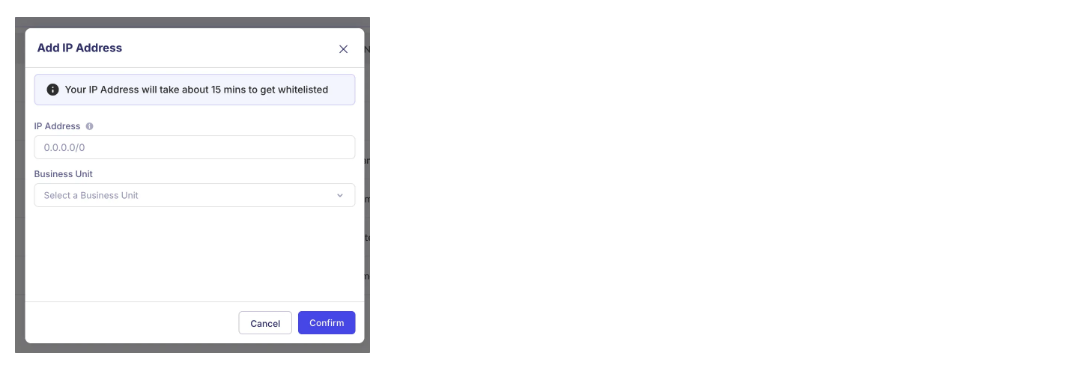
- From the Business Unit drop-down, select the production Business Unit for this IP whitelist entry.
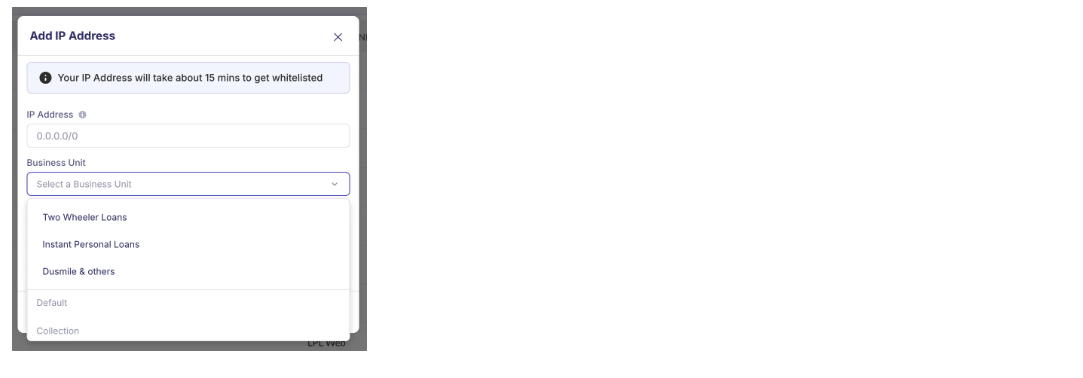
- Click Submit to add the IP address to the whitelist.
Currently, IP addresses must be added one at a time. Multiple IPs cannot be added in a single operation.
Runtime Behavior and Enforcement
IP whitelisting operates based on the following parameters:
- The system validates and accepts only IPv4 addresses and CIDR ranges
- The system applies the feature separately to each API (Output/logs API and Authentication API)
- The system ties whitelists to production Business Units only
- The system applies changes within 15 minutes after configuration
Supported IP Address Formats
The IP whitelisting feature supports the following formats:
- IPv4 Addresses: Single IP addresses (e.g.,
192.168.1.10) - CIDR Ranges: IP ranges in CIDR notation (e.g.,
192.168.1.0/24) - IPv6: Not currently supported
Business Unit Eligibility
The following conditions apply to Business Unit eligibility for IP whitelisting:
- The system restricts eligibility to production Business Units only
- The user must have access to at least one production Business Unit to use this feature
- The system automatically filters the drop-down menu to show only accessible production Business Units
Errors
The following table outlines common errors and their resolutions:
| Error | Error Description | Error Resolution |
|---|---|---|
| "Invalid IP format" | The IP address entered is not valid | Enter a correct IPv4 address or CIDR block (e.g., 192.168.1.10 or 192.168.1.0/24) |
| Business Unit not visible in drop-down | The user does not have access to a production Business Unit | Request access to the required production Business Unit from your administrator |
| IP not taking effect | The cached connections are preventing the change from taking effect | Wait a few minutes (up to 15 minutes) or retry API requests from whitelisted IPs |
Frequently Asked Questions
Q: What is the recommended way to add multiple IPs?
A: IP addresses must be added one at a time. Each IP address or CIDR range needs to be added individually through the Add IP Address interface.
Q: What environments support IP whitelisting?
A: IP whitelisting is only available for production Business Units. Staging environments do not require IP whitelisting, as there are no IP-based access restrictions for staging.
Q: What IP versions are supported for whitelisting?
A: Only IPv4 addresses and CIDR ranges are supported. IPv6 whitelisting is not available at the moment.
Q: When do IP whitelisting changes take effect?
A: Changes usually apply within 15 minutes after configuration. If an IP is not working immediately, wait a few minutes and retry your API requests.
Q: Why is IP whitelisting not required for the staging environment?
A: There are no IP-based access restrictions for the staging environment, so IP whitelisting is not required.
Q: What happens when an API is accessed from a non-whitelisted IP?
A: Requests from non-whitelisted IPs are rejected. Ensure all IPs that need access are added to the whitelist for the appropriate API and Business Unit.
Q: Can I edit or delete existing IP whitelist entries?
A: No. Due to security restrictions, only adding new IP addresses is supported. Editing or deleting existing entries is not allowed. If you need to remove an IP address, contact your administrator.